
There’s a version of running Meta ads where you’re essentially guessing. You spend money, people click, maybe some buy, and you have no real idea what caused what. That version is exhausting and expensive.
Correct Meta pixel setup is what gets you out of that mode. It’s a small piece of code that sits on your website and reports back to Meta every time someone does something meaningful, views a product, adds to cart, starts checkout, completes a purchase. That information is what lets the algorithm find more people like your best customers instead of just anyone with a pulse.
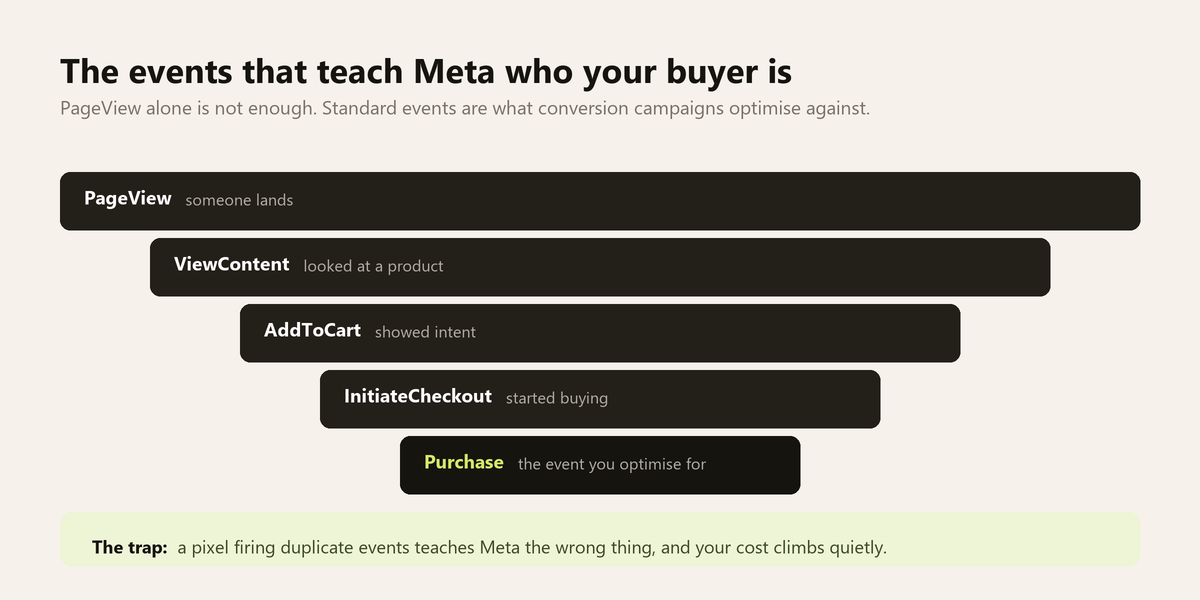
But here’s the thing. A pixel that’s installed wrong is almost worse than no pixel at all. Tracking is the foundation the rest of the complete Meta ads guide is built on, so it is worth slowing down here. Duplicate events, misfiring triggers, broken connections, these feed Meta inaccurate data. The algorithm learns from that data. You end up optimizing toward the wrong people without realizing it, and your cost per result quietly climbs while you wonder what changed.
Getting this right from the start saves a lot of pain down the road. It’s one of the most important steps in building a Meta ads system that actually scales.
What the pixel actually does
The Meta pixel is a JavaScript snippet that you place in the header of your website. Once it’s live it loads on every page and begins tracking visitor behavior.
At its most basic level it fires a “PageView” event every time someone loads a page. That alone gives Meta useful information about who visits your site.
But the real value comes from standard events https://developers.facebook.com/docs/meta-pixel/reference#standard-events. These are specific actions you configure manually or through your e-commerce platform: ViewContent, AddToCart, InitiateCheckout, Purchase, Lead, CompleteRegistration. Each event tells Meta something specific about where a visitor is in your funnel.
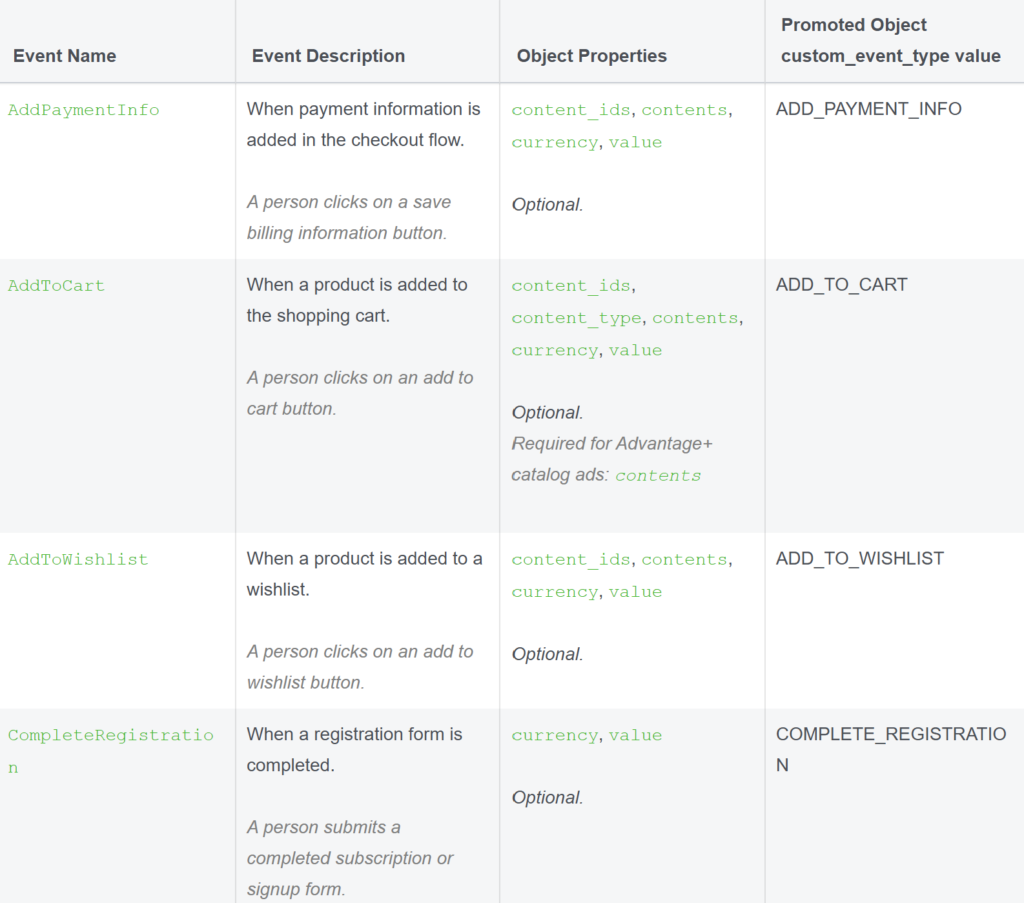
When you run a conversion campaign Meta uses these events as the optimization target. If you tell it to optimize for purchases it looks at everyone who fired a Purchase event on your site and finds more people who look like them. The cleaner and more accurate those events are the better the algorithm performs.
Meta pixel setup: two ways to install it
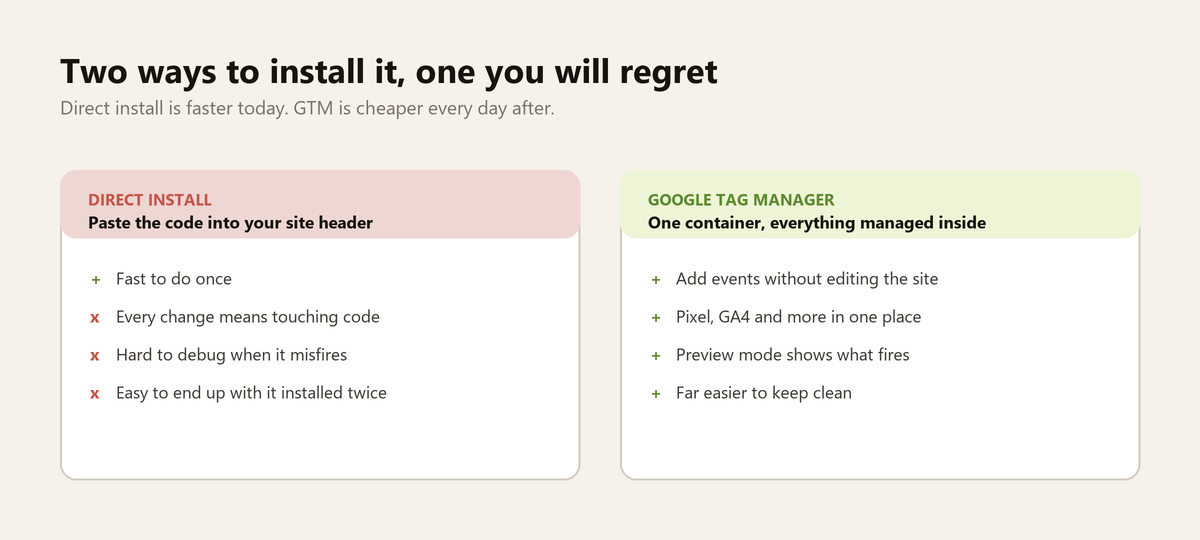
There are two main installation methods and which one you use depends on your setup.
Direct install means you paste the pixel code directly into your website’s header. If you’re on a platform like Squarespace or Wix and you have access to the site header this works fine for basic tracking. The downside is that every time you want to add a new event or change something you have to touch the code again.
Google Tag Manager is the better approach for most situations. GTM is a tag management system that lets you deploy and manage tracking scripts without editing your site’s code directly. You install the GTM container once, then manage everything, your Meta pixel, your GA4 tag, any other tracking scripts, from inside the GTM interface.
The GTM approach is cleaner, easier to maintain, and much easier to debug. If you’re serious about advertising this is the way to go.
Setting up through Google Tag Manager
First make sure GTM is already installed on your site. You’ll need the container code in both the head and body sections of your website.
Inside GTM you’ll create a new tag. Choose “Custom HTML” as the tag type, then paste your Meta pixel base code. This is the code you get from Events Manager inside Meta Business Suite, go to your pixel, click “Set up”, and choose “Manually install the code yourself.”
Set the trigger to “All Pages” so the base pixel fires on every page load. Save and publish.
That handles the PageView event. For standard events like Purchase or Lead you’ll create additional tags in GTM. Each tag fires the specific event code and each has its own trigger, usually a specific URL like a thank-you page after checkout or a form submission event.
Connecting GA4 and avoiding duplicate data
If you have Google Analytics 4 installed alongside your Meta pixel, which you should, there are a few things to watch for.
The main issue is deduplication. If your e-commerce platform has a native Meta pixel integration and you’ve also installed the pixel manually through GTM you’re probably firing events twice. Meta will count both. Your reported conversions will be inflated and the algorithm will be learning from a distorted signal.
To check for this open Meta’s Events Manager and look at your pixel’s activity. If you see duplicate event names or unusually high event counts that’s a red flag. You’ll need to either remove the native integration or remove your manual installation not both.
Verify everything before you spend
Once your pixel and events are installed don’t just assume they’re working. Verify them. Browser tracking alone keeps getting less reliable, so once the basics are working it is worth reading Meta’s Conversions API documentation and sending events server side as well.
The Meta Pixel Helper is a Chrome extension that shows you in real time whether your pixel is firing and what events are being detected as you browse your site. Install it, walk through your own checkout process, and watch what fires at each step.
Inside Events Manager you can also use the “Test Events” tool. It lets you enter your website URL and see live event data as you interact with the page. If your Purchase event isn’t showing up on the order confirmation page you’ll catch that before you launch a purchase-optimized campaign.
Give it 24 to 48 hours after launch before drawing conclusions. Some events take a little time to start populating in the dashboard.
What good tracking data actually enables
Once your pixel is firing cleanly a few things change in how you can run campaigns.
You can create custom audiences from your website visitors, people who visited a product page but didn’t buy, people who started checkout but didn’t finish, people who purchased more than once. These audiences are some of the highest-performing targeting options available because they’re built from real behavior.
You can create lookalike audiences from your purchasers. Meta takes your buyer list and finds other people on the platform who share similar characteristics. A 1% lookalike of your purchasers is often one of the most efficient cold audiences you can run.
And your campaign optimization actually works the way it’s supposed to. When Meta’s algorithm has clean, accurate event data to learn from it gets better over time.
With your Meta pixel setup done properly, the next piece is how you structure your campaigns. A lot of advertisers get the pixel right and then undo all that work with a campaign architecture that confuses the algorithm. The guide to Meta ads campaign structure in 2026 covers exactly how to avoid that.